
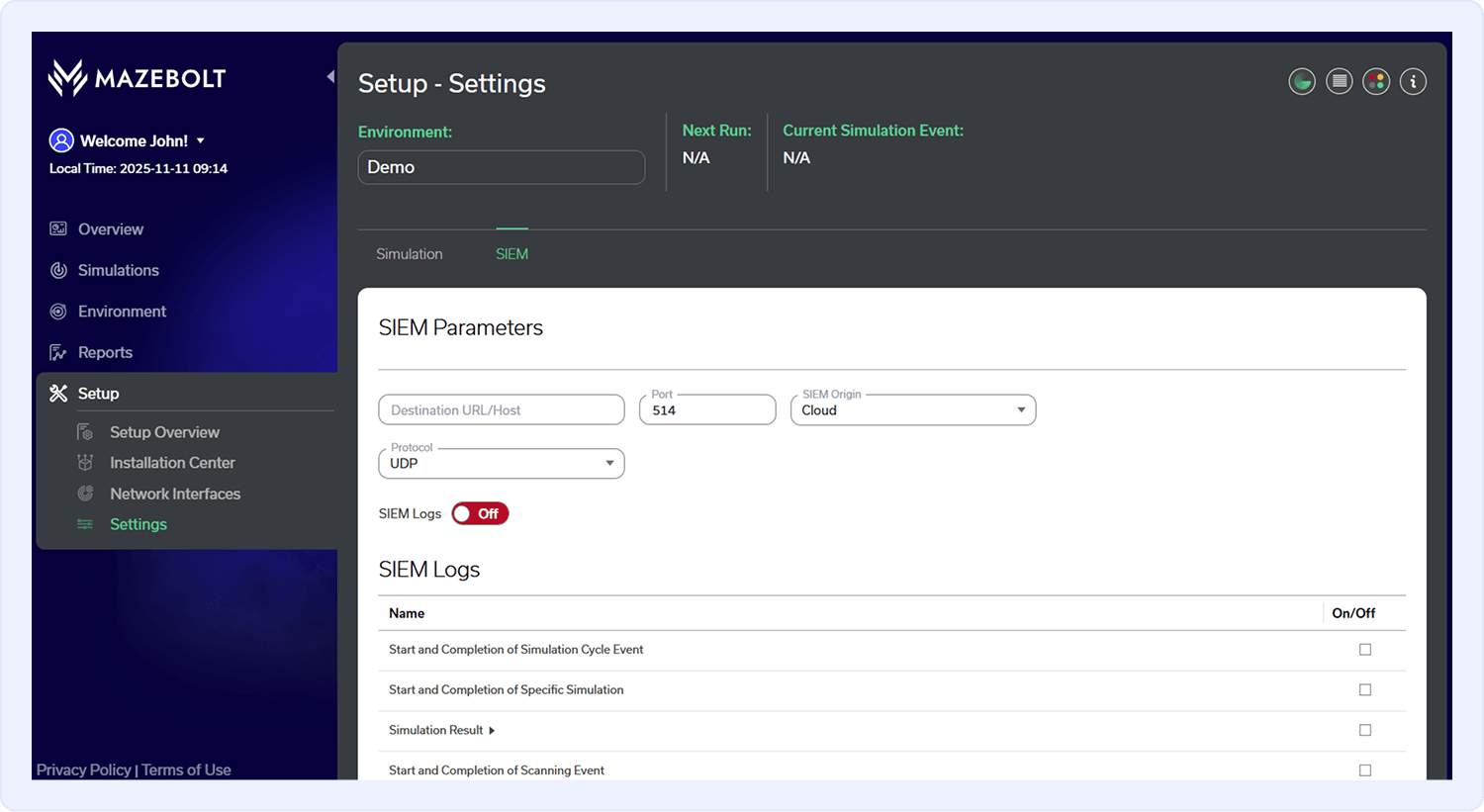
What is SIEM?
Security Information and Event Management (SIEM) systems are essential tools for identifying, monitoring, and responding to cyber threats. A SIEM solution collects and analyzes logs generated by various IT systems across an organization’s network to detect anomalies, track user activity, and highlight potential security incidents.
SIEM logs are the raw data ingested by the SIEM platform from sources such as firewalls, intrusion detection systems (IDS), antivirus software, cloud platforms, and operating systems. These logs contain detailed records of activities, events, and transactions within the network, providing security teams with the visibility needed to ensure compliance and respond to threats in real time.
RADAR enables you to forward activity logs to your existing SIEM log management system, whether it is cloud-based or as an on-premises SIEM server. This integration allows your Security Operations Center (SOC) team to monitor, analyze, and correlate RADAR logs alongside other network and system data for enhanced threat detection and response.
This guide provides an overview of the SIEM logging capabilities in RADAR and offers step-by-step instructions for integrating with your organization’s SIEM infrastructure.
What You'll Learn on This Page
On this page, you’ll learn how to integrate RADAR with your organization’s SIEM system. You’ll discover how to configure SIEM settings, select secure transport protocols, and forward RADAR logs for centralized monitoring and analysis.
This page provides an overview of RADAR’s SIEM logging capabilities and step-by-step guidance for integrating your network’s SIEM log management system with RADAR. You’ll also learn which log types can be forwarded, how to verify the connection, and best practices for maintaining secure and efficient log forwarding.
Integration with On-Premises SIEM Log Management Systems
The following diagram illustrates a typical integration between RADAR and an on-premises SIEM log management system:
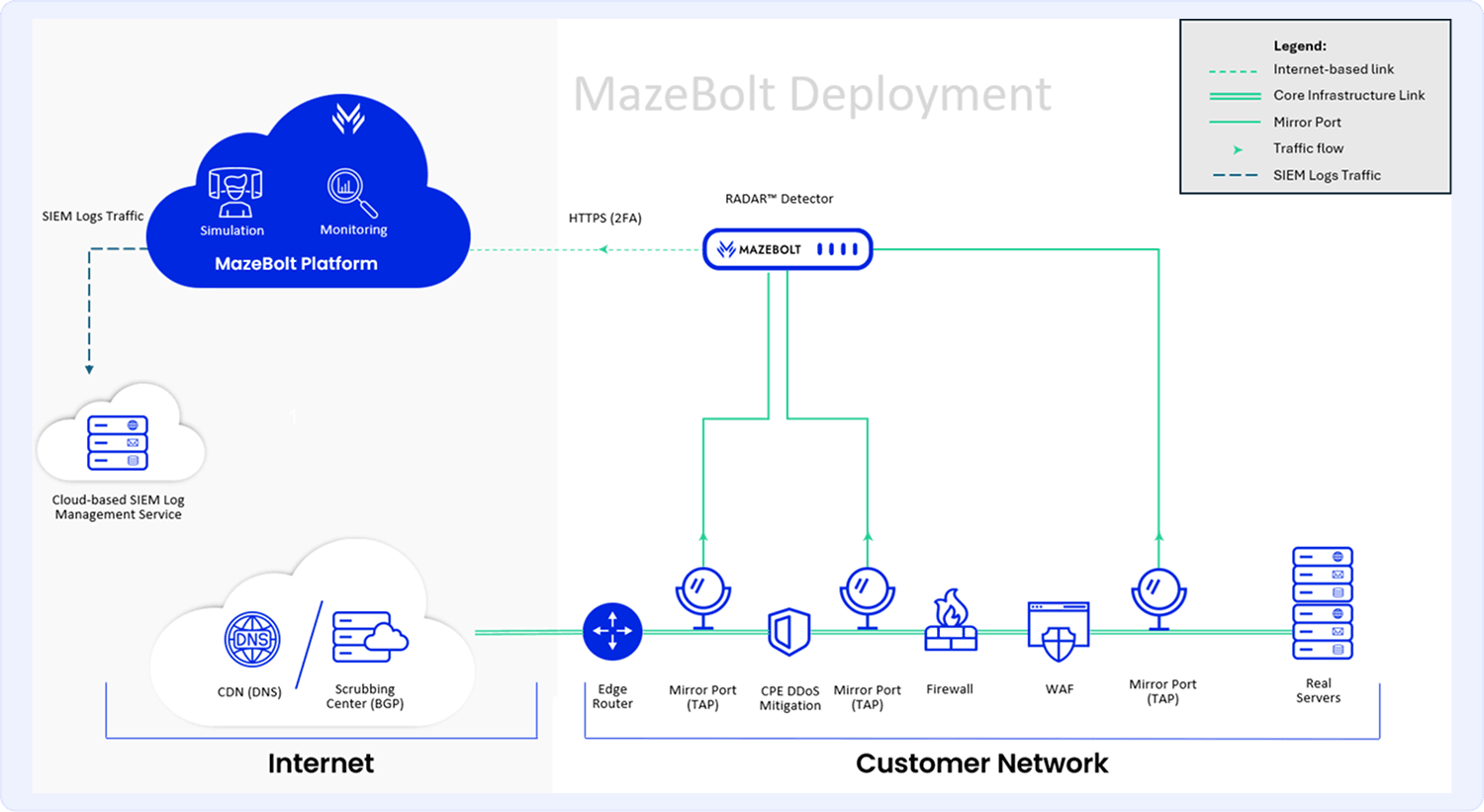
This setup allows secure transmission (within your network) of logs generated by RADAR, to your local SIEM platform, supporting internal monitoring and compliance requirements.
Integration with Cloud-Based SIEM Log Management Services
RADAR supports integration with leading cloud-based SIEM log management services. This allows organizations to centralize log collection and analysis in a scalable, cloud-native environment.
The following diagram illustrates a typical integration between RADAR and a cloud-based SIEM platform:
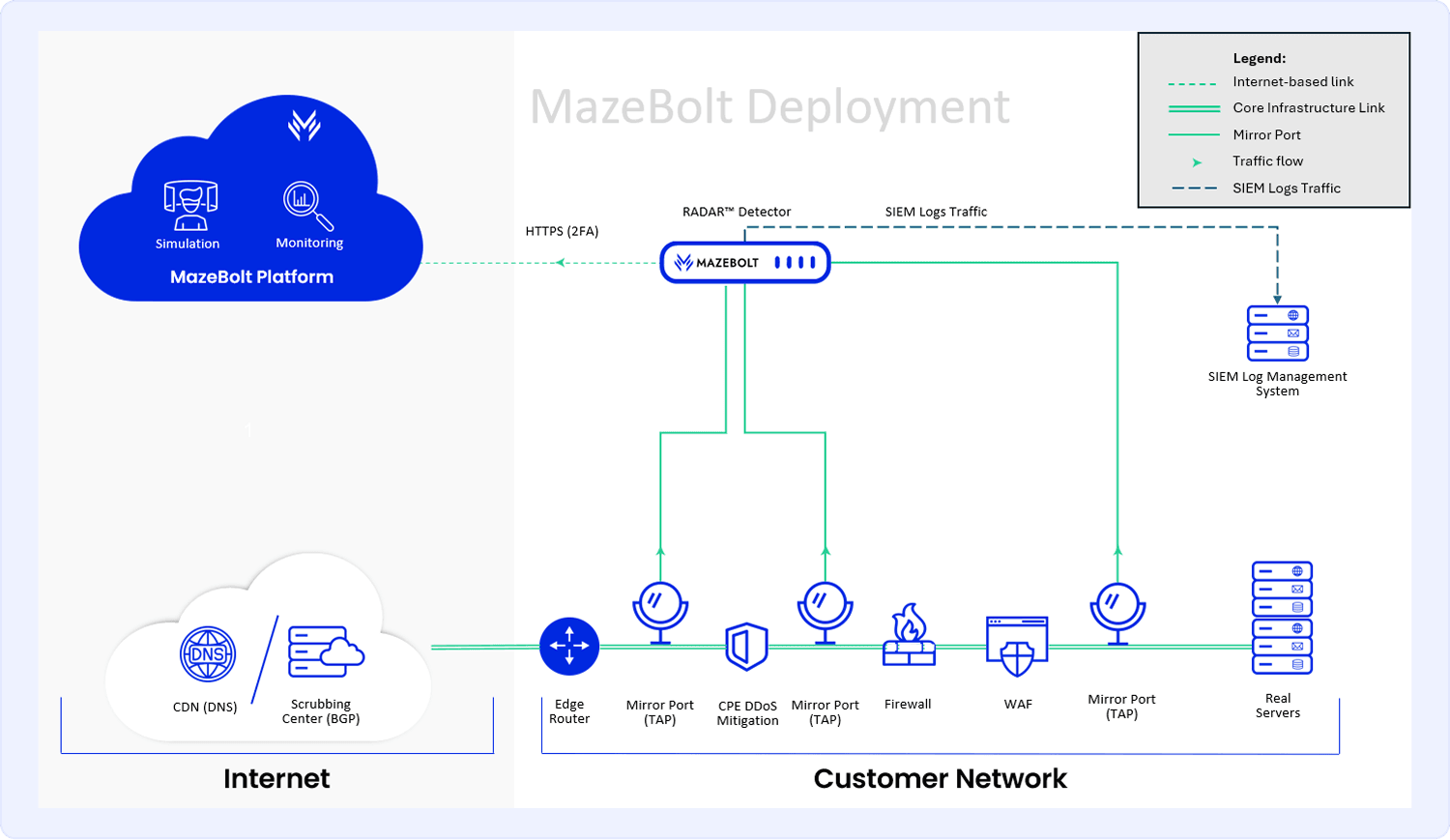
This configuration ensures that logs generated by RADAR can be securely transmitted over the internet utilizing TCP/UDP or TLS to your cloud SIEM platform, enabling real-time monitoring, alerting, and incident investigation within your existing SOC tools.
Setting Up SIEM Integration in RADAR
Follow these steps to configure RADAR to forward log data to your organization's SIEM system:
- In the left-hand navigation menu, click Setup.
- Select Settings.
- In the content tabs, select SIEM.
Configure the SIEM Parameters
- Configure the Destination
Enter the SIEM server address in the Destination URL or Host field. The Port field will be automatically populated based on the destination address. To specify a different TCP port, you may manually append the port to the destination address or update the field directly.
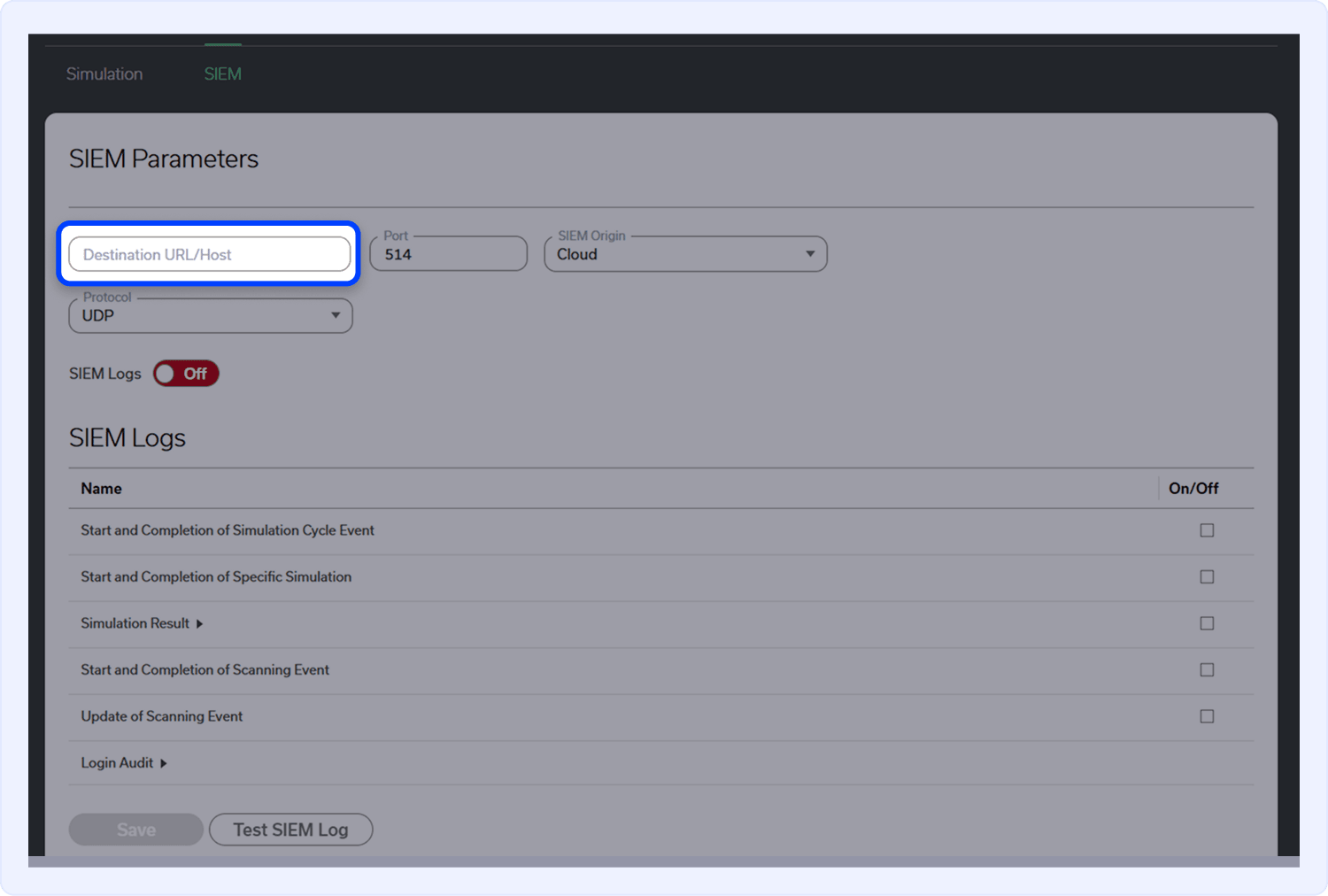
- Define the Log Origin
In the SIEM Origin drop-down list, select whether logs should be sent from the RADAR Cloud component or the Detector Device.
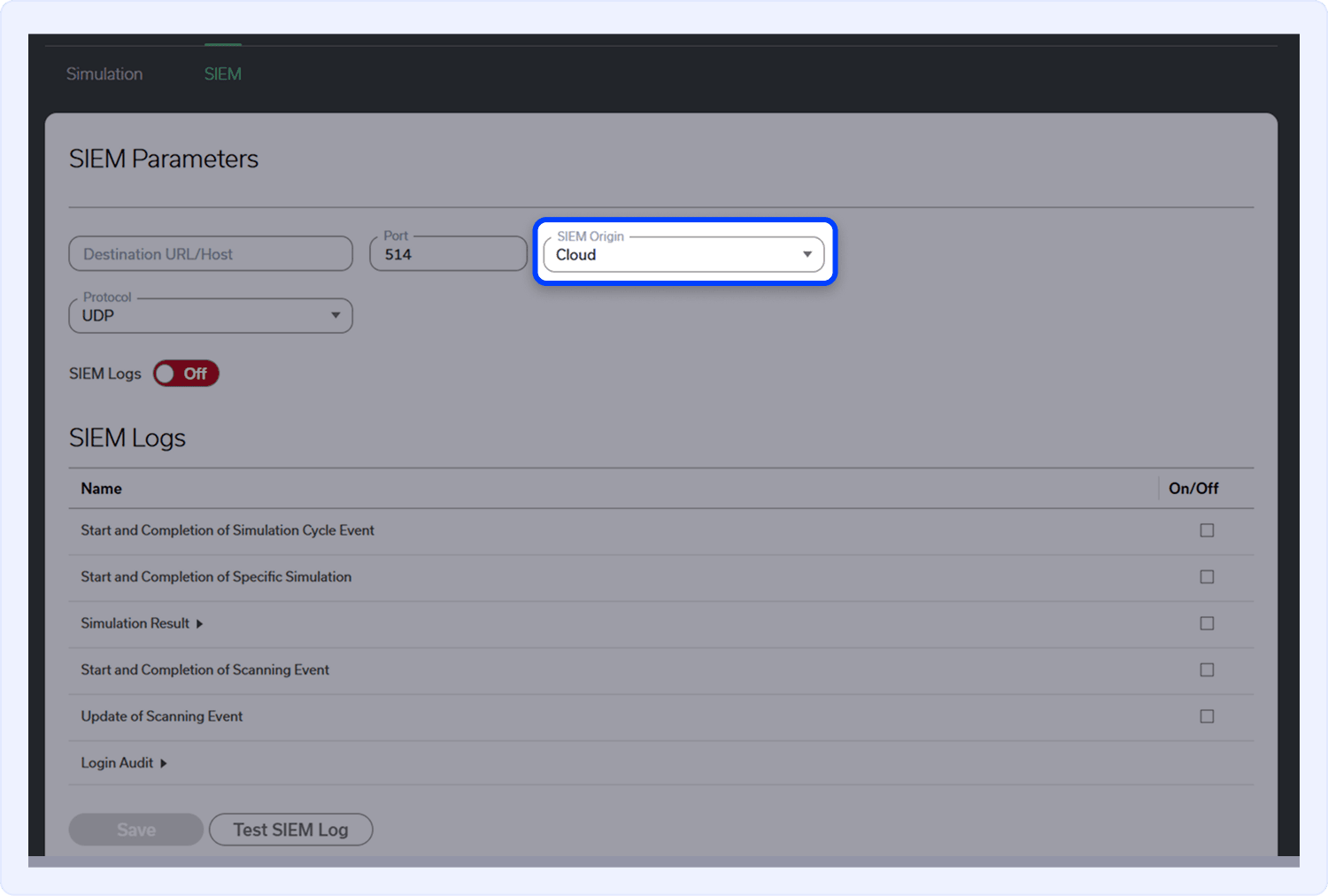
- Select a Detector (if applicable)
If Detector Device is selected as the log origin, choose the specific detector from the Select Detector drop-down list. - Select the Transport Protocol
From the Transport Protocol drop-down list, select the option that corresponds to your SIEM platform:- UDP
- TCP
- TCP with TLS (Secure) for encrypted communication with the SIEM server.
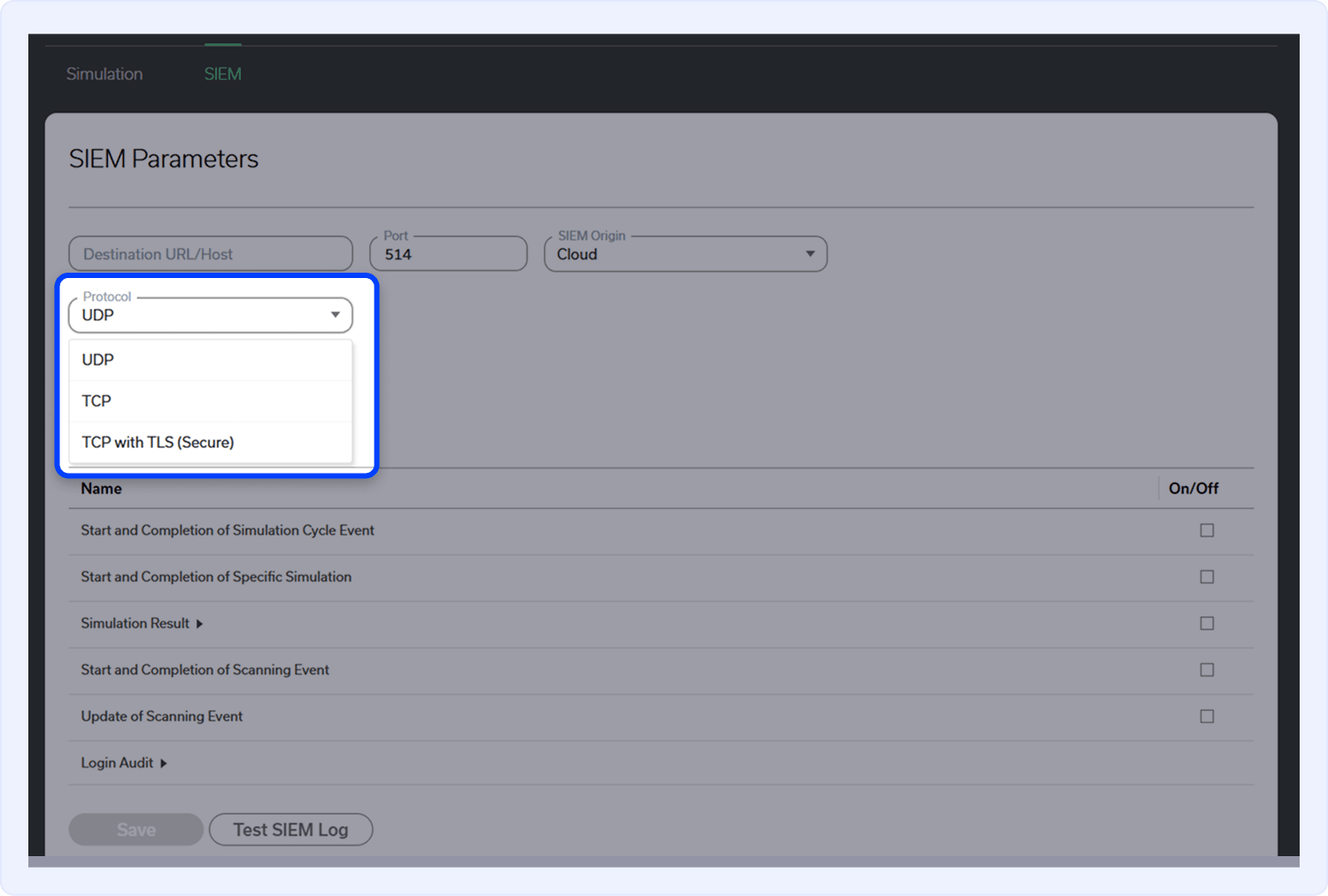
- Choose the SIEM Protocol (if applicable)
If TCP with TLS (Secure) is selected as the transport protocol, choose the relevant external SIEM platform (for example, Datadog or Splunk). This option enables authenticated and encrypted integration with supported external SIEM systems.
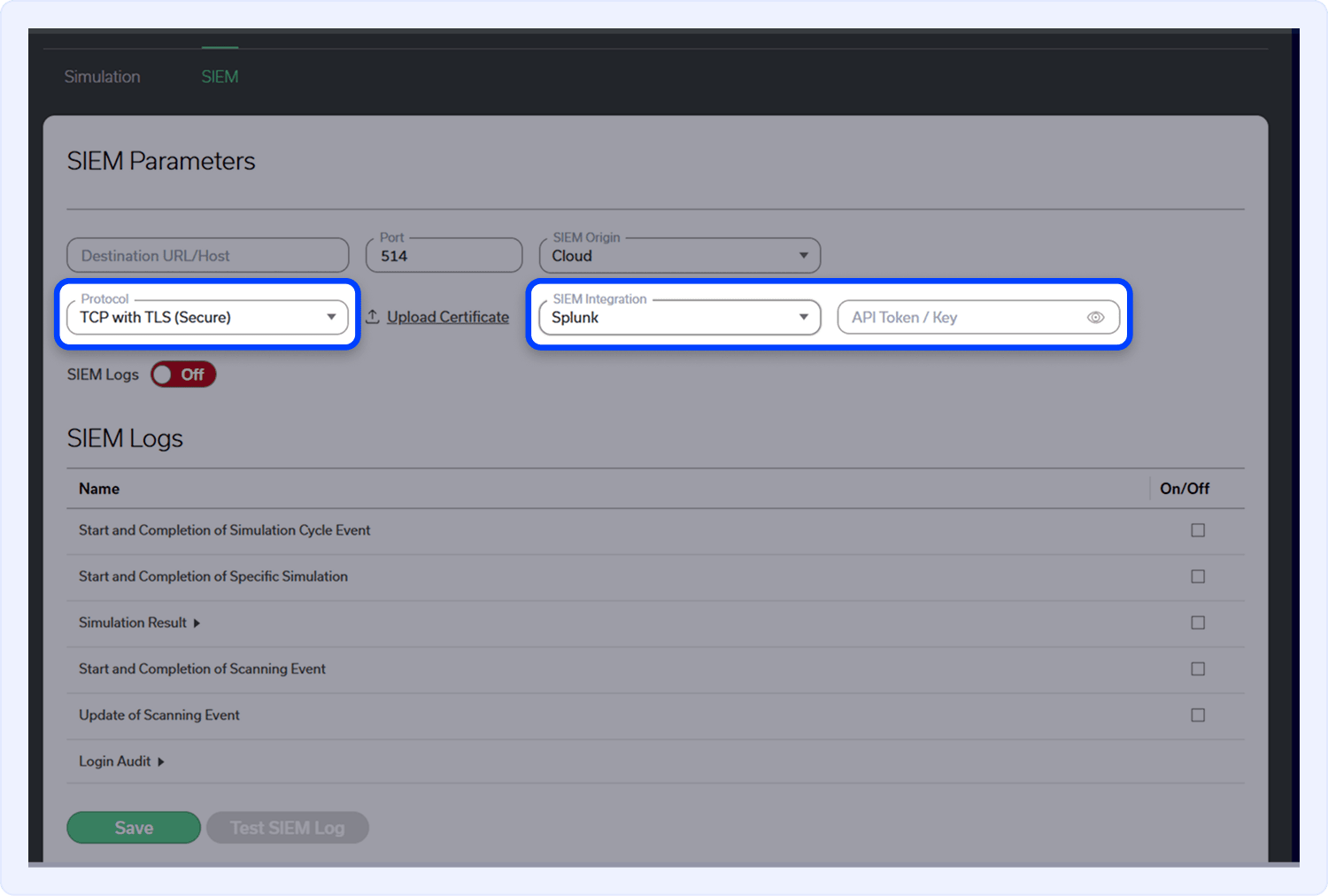
- Enter the API Token / Key (if applicable)
- Generate an API Token or Key from your SIEM system (cloud or on-premises).
- Paste the token into the API Token / Key field in the SIEM settings.
- Upload CA Certificate (if required)
- If your SIEM system uses a certificate that is not issued by a trusted Certificate Authority (CA), upload the appropriate CA certificate in the SIEM settings.
- Enable and Customize Log Forwarding
- Toggle the Enable SIEM Logs switch to activate the integration.
- In the SIEM Logs table, check the boxes next to the types of logs you want to send to the SIEM system.
- Click Save to apply your configuration.
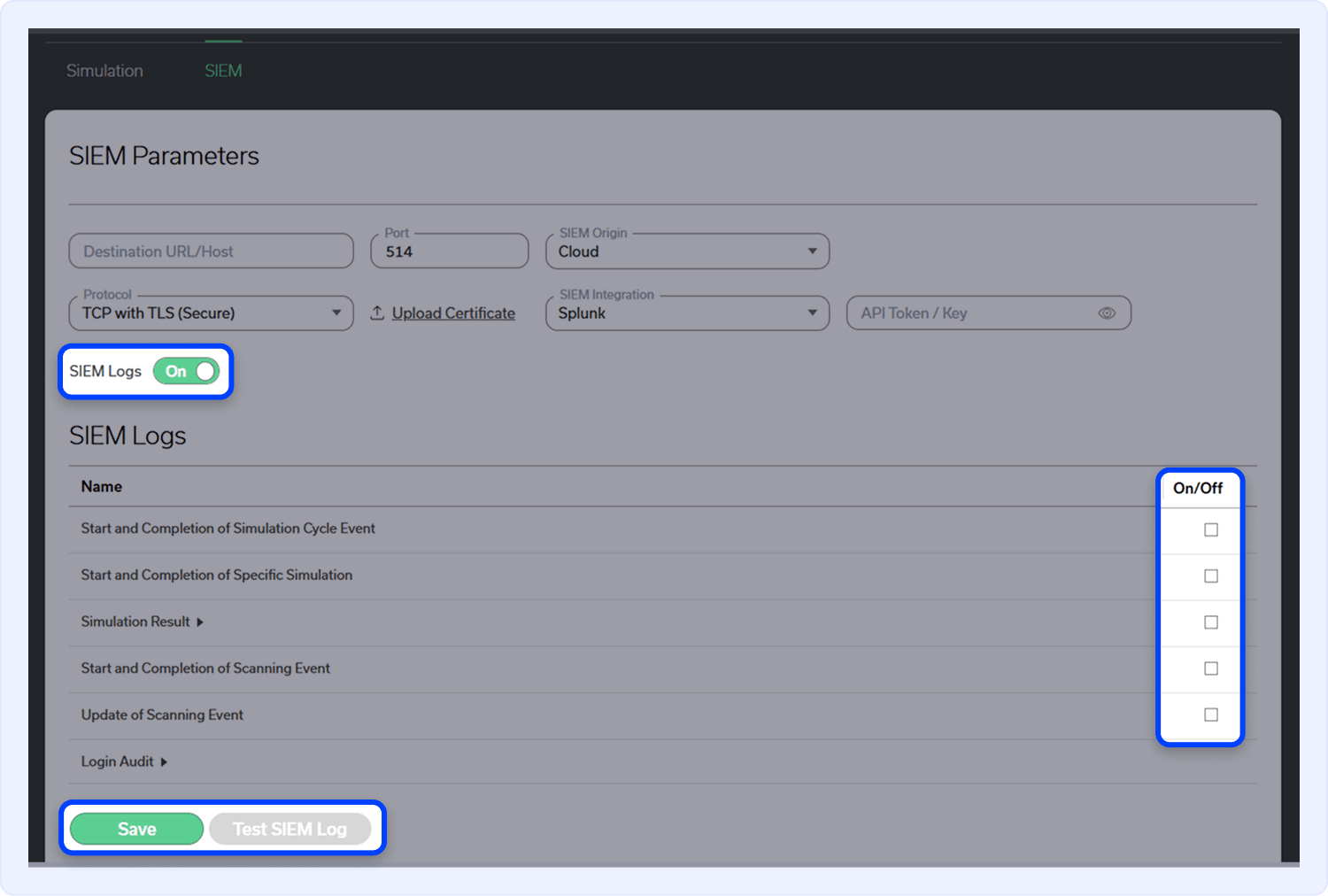
- Test SIEM Log
After enabling SIEM Log forwarding, send a test log to verify that the connection to your SIEM server is configured correctly.
Each SIEM test log includes a unique identifier string, ensuring that the log can be easily located and verified within the customer’s SIEM system.
Test SIEM Log Format:2024-09-08T08:51:07Z MazeBolt RADAR SIEM Log: Test Log ID - <UID>
UID = Random string with a numbers combo.
RADAR SIEM Logs Activities
The following options are available in the RADAR SIEM Logs settings. These allow you to define which types of events and activities are forwarded to your SIEM system for monitoring and analysis.
Start and Completion of Simulation Cycle Event
When a simulation cycle begins or ends (which may include multiple simulations grouped by time or scenario), RADAR will send corresponding syslog messages to the SIEM system.
Examples:
- Simulation Cycle Started: RADAR has started a DDoS simulation cycle.
2024-05-06T06:52:01Z MazeBolt RADAR SIEM Log: (<SEVERITY>) Started SimulationCycle EventName=EVENT_NAME - Simulation Cycle Completed: RADAR has completed a DDoS simulation cycle.
2024-05-06T06:52:01Z MazeBolt RADAR SIEM Log: (<SEVERITY>) Completed SimulationCycle EventName=EVENT_NAME
Start and Completion of Specific Simulation
When enabled, RADAR will generate and send syslog messages to the SIEM system whenever a DDoS simulation begins or completes.
Examples:
- Simulation Started: RADAR has started a DDoS simulation.
2024-05-06T07:15:55Z MazeBolt RADAR SIEM Log: (<SEVERITY>) Started Simulation AttackVector=Dynamic HTTPS Flooder, Target=web01.example.com - Simulation Completed: RADAR has completed the DDoS simulation on Target X.
2024-05-06T07:15:55Z MazeBolt RADAR SIEM Log: (<SEVERITY>) Completed Simulation AttackVector=Dynamic HTTPS Flooder, Target=web01.example.com
Simulation Result
RADAR can generate syslog messages summarizing the results of completed simulations. These results can be scoped according to the following dimensions:
- Results – Summary of Partially Protected/Vulnerable/Protected status
- Networks – Results grouped by network segments
- Target Groups – Results by logical groupings of Targets
- Targets – Results by specific Target
Example:
2024-05-07T12:55:03Z MazeBolt RADAR SIEM Log: (<SEVERITY>) Calculated Result Status=Vulnerable, AttackVector=Dynamic HTTPS Flooder, Target=web01.example.com, SecurityLayer=CPE
Start and Completion of Scanning Event
When enabled, RADAR generates and forwards syslog messages to the configured SIEM system whenever a network scan, such as enumeration or discovery, begins or completes.
Examples:
- Scanning Started: RADAR has initiated a scan for available services or targets.
2024-09-03T11:01:30Z MazeBolt RADAR SIEM Log: (<SEVERITY>) Started Scanning EventName=Enum_Scan_001, Type=target_enumeration - Scanning Completed: RADAR has completed the scan operation.
2024-09-03T11:01:30Z MazeBolt RADAR SIEM Log: (<SEVERITY>) Completed Scanning EventName=Enum_Scan_001, Type=target_enumeration
Update of Scanning Event
Sends a syslog message whenever a scan result is updated, such as when new services or ports are detected, or previously detected services are no longer found.
Example:
- Scanning Update: Service Enumeration scanning is completed for selected Targets.
2024-09-03T12:52:27Z MazeBolt RADAR SIEM Log: (<SEVERITY>) Completed NetworkScan Type=service_enumeration, Targets=["web01.example.com","web02.example.com"]
Login Audit
Note
The Login Audit log type is configured at the organization level and can only be enabled or modified by users with the Admin role. Unlike other SIEM log types that can be configured per environment, Login Audit logging applies across the organization.
When enabled, RADAR will send SIEM logs for user login activity, helping to support audit and compliance use cases. The following events are logged:
- Successful Login – User successfully authenticated
- Failed Login Attempt – Failed password or invalid credentials.
Examples:
- Login Success: user@domain.com logged in successfully
2024-09-08T08:51:07Z MazeBolt RADAR SIEM Log: (<SEVERITY>) Successful LoginUsername=user@domain.com - Login Failed: Invalid password attempt for
user@domain.com2024-09-08T08:52:07Z MazeBolt RADAR SIEM Log: (<SEVERITY>) Failed LoginUsername=user@domain.com, Reason="Incorrect Password"